Jira

What is JIRA?
JIRA is a tool
developed by Australian Company Atlassian. It is used for bug tracking,
issue tracking, and project management. The name
“JIRA” is actually inherited from the Japanese word
“Gojira” which means “Godzilla”.
developed by Australian Company Atlassian. It is used for bug tracking,
issue tracking, and project management. The name
“JIRA” is actually inherited from the Japanese word
“Gojira” which means “Godzilla”.
The basic use
of this tool is to track issue and bugs related to your software and Mobile apps.
It is also used for project management. The JIRA dashboard consists of many
useful functions and features which make handling of issues easy.
of this tool is to track issue and bugs related to your software and Mobile apps.
It is also used for project management. The JIRA dashboard consists of many
useful functions and features which make handling of issues easy.
JIRA Scheme
Inside JIRA
scheme, everything can be configured, and it consists of
scheme, everything can be configured, and it consists of
- Workflows
- Issue Types
- Custom Fields
- Screens
- Field Configuration
- Notification
- Permissions
JIRA Issues and Issue types
This section
will guide you through JIRA Issue and it’s types.
will guide you through JIRA Issue and it’s types.
What is JIRA Issue?
JIRA issue
would track bug or issue that underlies the project. Once you have imported
project then you can create issues.
would track bug or issue that underlies the project. Once you have imported
project then you can create issues.
Under Issues,
you will find other useful features like
you will find other useful features like
- Issue Types
- Workflow’s
- Screens
- Fields
- Issue Attributes
Let see JIRA
Issue in detail
Issue in detail
Issue Types
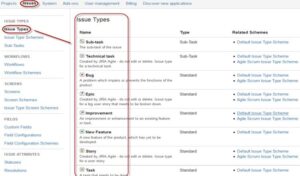
Issue Type
displays all types of items that can be created and tracked via JIRA. JIRA
Issues are classified under various forms like new feature, sub-task, bug, etc.
as shown in the screen shot.
displays all types of items that can be created and tracked via JIRA. JIRA
Issues are classified under various forms like new feature, sub-task, bug, etc.
as shown in the screen shot.
There are two
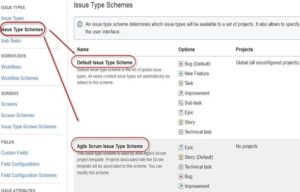
types of Issue types schemes in JIRA, one is
types of Issue types schemes in JIRA, one is
- Default Issue Type
Scheme: In default issue type scheme
all newly created issues will be added automatically to this scheme - Agile Scrum Issue Type
Scheme: Issues and project associated
with Agile Scrum will use this scheme
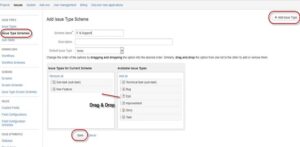
Apart from
these two issue type schemes, you can also add schemes manually as per
requirement, for example we have created IT & Support scheme,
for these we will drag and drop the issue types from the Available
Issue type to Issue type for current scheme as shown
in the screen shot below
these two issue type schemes, you can also add schemes manually as per
requirement, for example we have created IT & Support scheme,
for these we will drag and drop the issue types from the Available
Issue type to Issue type for current scheme as shown
in the screen shot below
JIRA Components
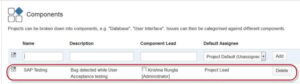
Components are
sub-sections of a project; they are used to group issues within a project into
smaller parts. Components add some structures to the projects, breaking it up
into features, teams, modules, subprojects and more. Using components you can
generate reports, collect statistics, and display it on dashboards and so on.
sub-sections of a project; they are used to group issues within a project into
smaller parts. Components add some structures to the projects, breaking it up
into features, teams, modules, subprojects and more. Using components you can
generate reports, collect statistics, and display it on dashboards and so on.
To add new
components, as shown in the above screen you can add name, description,
component lead and default assignee.
components, as shown in the above screen you can add name, description,
component lead and default assignee.
JIRA screen
When issue is
created in JIRA, it will be arranged and represented into different fields,
this display of field in JIRA is known as a screen. This field can be
transitioned and edited through workflow. For each issue, you can assign the
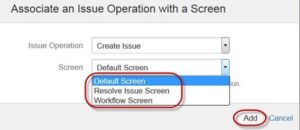
screen type as shown in the screen-shot. To add or associate an issue operation
with a screen you have to go in main menu and click on Issues then
click on Screen Schemes and then click on “Associate
an issue operation with a screen” and add the screen according to
the requirement.
created in JIRA, it will be arranged and represented into different fields,
this display of field in JIRA is known as a screen. This field can be
transitioned and edited through workflow. For each issue, you can assign the
screen type as shown in the screen-shot. To add or associate an issue operation
with a screen you have to go in main menu and click on Issues then
click on Screen Schemes and then click on “Associate
an issue operation with a screen” and add the screen according to
the requirement.
Issue Attributes
Issue
Attributes encompasses
Attributes encompasses
- Statuses
- Resolutions
- Priorities
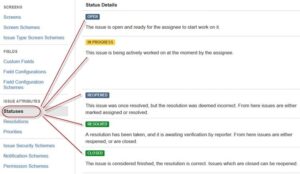
Statuses:
Different statuses are used to indicate the progress of a project like To
do, InProgress, Open, Closed, ReOpened, and Resolved. Likewise, you
have resolutions and priorities, in resolution it again tells about the
progress of issue like Fixed, Won’t fix, Duplicate, Incomplete, Cannot
reproduce, Done also you can set the priorities of the issue whether
an issue is critical, major, minor, blocker and Trivial.
Different statuses are used to indicate the progress of a project like To
do, InProgress, Open, Closed, ReOpened, and Resolved. Likewise, you
have resolutions and priorities, in resolution it again tells about the
progress of issue like Fixed, Won’t fix, Duplicate, Incomplete, Cannot
reproduce, Done also you can set the priorities of the issue whether
an issue is critical, major, minor, blocker and Trivial.
Issue Security Schemes
This function
in JIRA allows you to control who can view the issues. It consists of a number
of security levels which can have users or groups assigned to them. You can
specify the level of security for the issues while creating or editing an
issue.
in JIRA allows you to control who can view the issues. It consists of a number
of security levels which can have users or groups assigned to them. You can
specify the level of security for the issues while creating or editing an
issue.
Similarly,
there is a Default Permission Scheme any new project that are
created will be assigned to this scheme. Permission Schemes allow you to create
a set of permissions and apply this set of permission to any project.
there is a Default Permission Scheme any new project that are
created will be assigned to this scheme. Permission Schemes allow you to create
a set of permissions and apply this set of permission to any project.
System Administration
Some of the
useful features that JIRA admin provides to users are:
useful features that JIRA admin provides to users are:
- Audit Log
Under
Audit Log, you can view all the details about the issue created, and the
changes made in the issues.
Audit Log, you can view all the details about the issue created, and the
changes made in the issues.
- Issue Linking
This
will show whether your issues link with any other issue that is already present
or created in the project also you can de-activate Issue linking from the panel
itself
will show whether your issues link with any other issue that is already present
or created in the project also you can de-activate Issue linking from the panel
itself
- Mail in JIRA
Using
Mail system in admin you can mail issues to an account on a POP or IMAP mail
server or messages written to the file system generated by an external mail
service.
Mail system in admin you can mail issues to an account on a POP or IMAP mail
server or messages written to the file system generated by an external mail
service.
- Events
An
event describes the status, the default template and the notification scheme and
workflow transition post function associations for the event. The events are
classified in two a System event (JIRA defined events) and Custom event (User
defined events).
event describes the status, the default template and the notification scheme and
workflow transition post function associations for the event. The events are
classified in two a System event (JIRA defined events) and Custom event (User
defined events).
- Watch list
JIRA
allows you to watch a particular issue, which tells you about the notifications
of any updates relating to that issue. To watch an issue, click on the word
“watch” in the issue window, and if you want to see who is watching
your issues, you have to click on the number in brackets.
allows you to watch a particular issue, which tells you about the notifications
of any updates relating to that issue. To watch an issue, click on the word
“watch” in the issue window, and if you want to see who is watching
your issues, you have to click on the number in brackets.
- Issue Collectors
In
the form of JIRA issues, an issue collector allows you to gather feedback on
any website. In administration if you click on Issue collectors an option will
open asking Add Issue Collector.Once you have configured the look
and feel of an Issue Collector, embed the generated JavaScript in
any website for feedback.
the form of JIRA issues, an issue collector allows you to gather feedback on
any website. In administration if you click on Issue collectors an option will
open asking Add Issue Collector.Once you have configured the look
and feel of an Issue Collector, embed the generated JavaScript in
any website for feedback.
- Development Tools
You
can also connect your Software development tools to JIRA using this admin
function. You have to enter the URL of the application to connect with JIRA.
can also connect your Software development tools to JIRA using this admin
function. You have to enter the URL of the application to connect with JIRA.
How to create an issue in JIRA
JIRA Dashboard
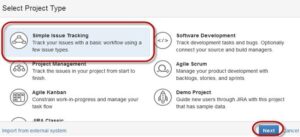
will open when you enter your user ID and password. Under JIRA dashboard you
will find option Project, when you click on it, it will open a
window that list out options like Simple Issue Tracking, Project
Management, Agile Kanban, Jira Classic and so on as shown in screen
shot below.
will open when you enter your user ID and password. Under JIRA dashboard you
will find option Project, when you click on it, it will open a
window that list out options like Simple Issue Tracking, Project
Management, Agile Kanban, Jira Classic and so on as shown in screen
shot below.
When you click
on option Simple Issue Tracking, another window will open,
where you can mention all the details about the issue and also assign the issue
to the responsible person.
on option Simple Issue Tracking, another window will open,
where you can mention all the details about the issue and also assign the issue
to the responsible person.
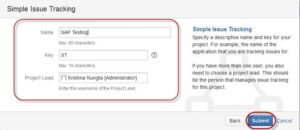
When you click
on “Submit” button, a window will open where you can perform a list
of work like creating issues, assigning issues, check the status of issues
like- resolved, In-Progress or closed and so on.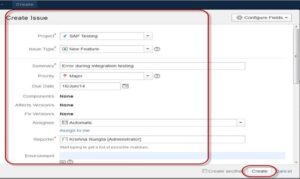
on “Submit” button, a window will open where you can perform a list
of work like creating issues, assigning issues, check the status of issues
like- resolved, In-Progress or closed and so on.
Once the issue
is created a pop-up will appear on your screen saying your issue is created
successfully as shown in the screen shot below
is created a pop-up will appear on your screen saying your issue is created
successfully as shown in the screen shot below
Now if you want
to edit an issue or you want to export the issue to XML or Word document, then
you can hover your mouse on main panel and click on Issues.
Under Issues options click on search for issues that
will open a window from where you can locate your issues and perform multiple
functions.
to edit an issue or you want to export the issue to XML or Word document, then
you can hover your mouse on main panel and click on Issues.
Under Issues options click on search for issues that
will open a window from where you can locate your issues and perform multiple
functions.
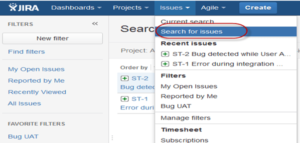
When you select
the “search for Issues” under Issues, a
window will appear as shown in the screen shot
the “search for Issues” under Issues, a
window will appear as shown in the screen shot
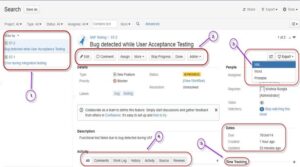
- Search for issues option will bring you to a window where you can
see the issues created by you like here we have issues ST1 and ST2 - Here in the screen shot you can
see the issue “Bug detected while User Acceptance
Testing” and all the details related to it. From here, you
can perform multiple tasks like you can stop the progress on
issues, edit the issues, comment on the issues, assigning issues and
so on - Even you can export issue
details to a XML or Word document. - Also, you can view activity
going on the issue, reviews on the issue, work log, history of the issue
and so on. - Under the time tracking option,
you can even see the estimation time to resolve the issues
In the same
window, you can set a filter for the issue and save them under Favorite
Filters, so when you want to search or view a particular issue you can
locate it using the filter.
window, you can set a filter for the issue and save them under Favorite
Filters, so when you want to search or view a particular issue you can
locate it using the filter.
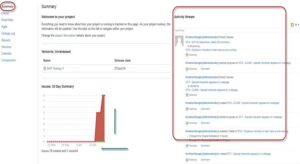
To view the
summary of the issue, you can click on options summary, this
will open a window which will show all the details of your project and progress
on this chart. On the right-hand side of the summary window, there is an Activity
Stream which gives the details about the issues and comments made by
the assignee on the issue.
summary of the issue, you can click on options summary, this
will open a window which will show all the details of your project and progress
on this chart. On the right-hand side of the summary window, there is an Activity
Stream which gives the details about the issues and comments made by
the assignee on the issue.
Sub-Task
Subtask issues
are useful for splitting up a parent issue into a number of smaller tasks that
can be assigned and tracked separately. It addresses issues more
comprehensively and segregates the task into smaller chunks of task to do.
are useful for splitting up a parent issue into a number of smaller tasks that
can be assigned and tracked separately. It addresses issues more
comprehensively and segregates the task into smaller chunks of task to do.
How
to create Sub-Task
to create Sub-Task
Sub-Task can be
created in two ways
created in two ways
- Create sub-task under parent
issue - Creating an issue into a
sub-task
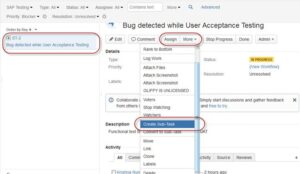
To create
sub-task in JIRA, you have to select an issue in which you want to assign the
sub-task. Under the issue window, click on Assign more option,
and then click on create sub-task as shown in the screenshot
below. You can also select convert to sub-task under same tab
to convert the parent issue into a sub-task.
sub-task in JIRA, you have to select an issue in which you want to assign the
sub-task. Under the issue window, click on Assign more option,
and then click on create sub-task as shown in the screenshot
below. You can also select convert to sub-task under same tab
to convert the parent issue into a sub-task.
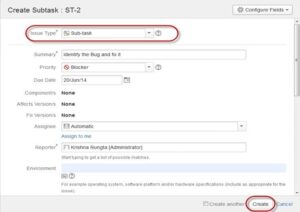
Once you click
on Create Sub-Task, a window will pop up to add sub-task issue.
Fill up the details about the sub-task and click on Create as
shown in below screen-shot, and this will create sub-task for the
parent issue.
on Create Sub-Task, a window will pop up to add sub-task issue.
Fill up the details about the sub-task and click on Create as
shown in below screen-shot, and this will create sub-task for the
parent issue.
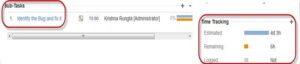
It will create
a sub-task under parent issues, and details will appear about when to complete
the task on the issue type page as shown in the screenshot below. If you would
like to add more sub-task, you can click on the plus (+) sign on the corner of
the sub-task panel. Likewise, if you want to note down the time spent on the
present task, click on (+) plus sign in the corner of the time tracking and put
down the details in the log sheet.
a sub-task under parent issues, and details will appear about when to complete
the task on the issue type page as shown in the screenshot below. If you would
like to add more sub-task, you can click on the plus (+) sign on the corner of
the sub-task panel. Likewise, if you want to note down the time spent on the
present task, click on (+) plus sign in the corner of the time tracking and put
down the details in the log sheet.
Some important
points to remember while creating Sub-Task
points to remember while creating Sub-Task
- You can have as many sub-task
as needed under an Issue - You cannot have a sub-task for
a sub-task - Once a sub-task is created
under a parent, parent cannot be converted into a sub-task - A sub-task can however be
converted into a parent issue - You can work on your sub-task
without having navigating away from the parent issue
WorkFlows
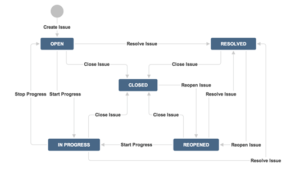
A JIRA workflow
is a set of statuses and transitions that an issue goes through during its
lifecycle. JIRA workflow encompasses five main stages once the issue is
created.
is a set of statuses and transitions that an issue goes through during its
lifecycle. JIRA workflow encompasses five main stages once the issue is
created.
- Open Issue
- Resolved Issue
- InProgress Issue
- ReOpened Issue
- Close Issue
While workflow
in JIRA comprises of Statuses, assignee, resolution, conditions,
validators, post-function’s and properties
in JIRA comprises of Statuses, assignee, resolution, conditions,
validators, post-function’s and properties
- Statuses: It represents the positions of the issues within a workflow
- Transitions: Transitions are the bridges between statuses, the way a
particular issue moves from one status to another - Assignee: The assignee dictates the responsible party for any
given issue and determines how the task would be executed - Resolution: It explains why an issue transitions from an open
status to a closed one - Conditions: Conditions control who can perform a transition
- Validators: It can ensure that the transition can happen given the
state of the issue - Properties: JIRA recognizes some properties on transitions
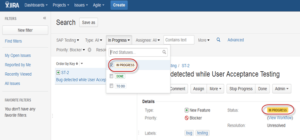
You can assign
the status of the issue from the window itself, when you click on the check box
for IN Progress status as shown in screen shot below, it will
reflect the status in the issue panel highlighted in yellow.
the status of the issue from the window itself, when you click on the check box
for IN Progress status as shown in screen shot below, it will
reflect the status in the issue panel highlighted in yellow.
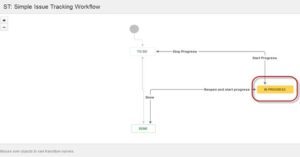
For the issue
that we have created, JIRA will present a workflow which maps the progress of
the project. As shown in screenshot whatever status that we have set in the
Issue panel it will be reflected in Workflow chart, here we have set the issue
status in “In Progress” and same status is updated in the workflow,
highlighted in yellow. Workflow can give a quick overview of the work under
process.
that we have created, JIRA will present a workflow which maps the progress of
the project. As shown in screenshot whatever status that we have set in the
Issue panel it will be reflected in Workflow chart, here we have set the issue
status in “In Progress” and same status is updated in the workflow,
highlighted in yellow. Workflow can give a quick overview of the work under
process.
Plug-ins in JIRA
There are
plug-ins available for JIRA to work more effectively, some of these plugins are
Zendesk, Salesforce, GitHub, Gitbucket and so on. Some of them enables support
team to report issues directly into JIRA, creates unlimited private
repositories with full featured issue and test management support, etc.
plug-ins available for JIRA to work more effectively, some of these plugins are
Zendesk, Salesforce, GitHub, Gitbucket and so on. Some of them enables support
team to report issues directly into JIRA, creates unlimited private
repositories with full featured issue and test management support, etc.
JIRA Agile
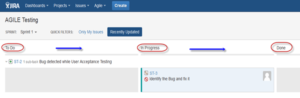
Agile or Scrum
method is generally used by development teams who follows a roadmap of planned
features for upcoming versions of their product. Agile follows the same
roadmaps to track their issues as in other JIRA methods To
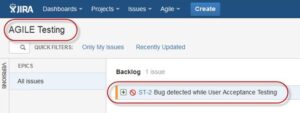
do -> In Progress -> Done , as shown in the
screen shot below, we have one issue in To do and the second
issue in In Progress. Once the issue in In Progress will
be resolved, it will move to Done status and in the same way
the issue in To do will move to the next stage In
Progress.
method is generally used by development teams who follows a roadmap of planned
features for upcoming versions of their product. Agile follows the same
roadmaps to track their issues as in other JIRA methods To
do -> In Progress -> Done , as shown in the
screen shot below, we have one issue in To do and the second
issue in In Progress. Once the issue in In Progress will
be resolved, it will move to Done status and in the same way
the issue in To do will move to the next stage In
Progress.
Creating issue in Agile
To create agile
issue, go to main menu under Agile tab, click on “Getting
Started”, when you click on it, it will ask to create new board for
the issues for Scrum or Kanban. You can choose
your option as per your requirement, here we have selected Scrum method.
issue, go to main menu under Agile tab, click on “Getting
Started”, when you click on it, it will ask to create new board for
the issues for Scrum or Kanban. You can choose
your option as per your requirement, here we have selected Scrum method.
How to create an Epic in Agile
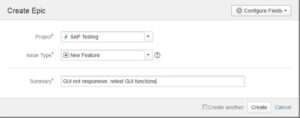
In JIRA Agile,
an epic is simply an issue type. The epic captures a large body of work. It is
a large user story which can be broken down into a number of small stories. To
complete an epic, it may take several sprints. You can either create a new epic
in agile or either use the issue you have created in normal JIRA board.
Likewise, you can also create a story for agile scrum.
an epic is simply an issue type. The epic captures a large body of work. It is
a large user story which can be broken down into a number of small stories. To
complete an epic, it may take several sprints. You can either create a new epic
in agile or either use the issue you have created in normal JIRA board.
Likewise, you can also create a story for agile scrum.
Plan
Mode in Agile:
Mode in Agile:
Plan mode
displays all the user stories created for the project. You can use the
left-hand side menu to decide the basis on which the issues need to be
displayed. While on the right-hand side menu clicking on the issue, you can
create subtasks, logwork, etc.
displays all the user stories created for the project. You can use the
left-hand side menu to decide the basis on which the issues need to be
displayed. While on the right-hand side menu clicking on the issue, you can
create subtasks, logwork, etc.
Work
Mode in Agile
Mode in Agile
It will display
the active sprint information. All the issues or users stories will be
displayed into three categories as shown in the screen shot below To
do, In Progress and Done to show the progress of the project or
issues.
the active sprint information. All the issues or users stories will be
displayed into three categories as shown in the screen shot below To
do, In Progress and Done to show the progress of the project or
issues.
Use of Clone and Link in JIRA
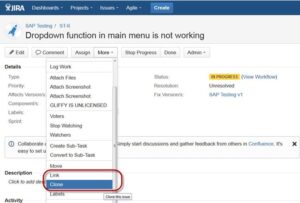
In JIRA, you
can also clone the issue, one advantage of cloning an issue is that the
different team can work separately on the issue and resolve the issue quickly.
can also clone the issue, one advantage of cloning an issue is that the
different team can work separately on the issue and resolve the issue quickly.
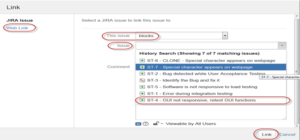
There is
another useful function is JIRA Link, Issue linking allows you to
create an association between two existing issues on either the same or different
JIRA servers. As shown in the screen shot, we have linked the current
issue “ST-6 Drop down menu is not working” with
another issue ” ST-4 GUI is not responsive- retest GUI
functions”.
another useful function is JIRA Link, Issue linking allows you to
create an association between two existing issues on either the same or different
JIRA servers. As shown in the screen shot, we have linked the current
issue “ST-6 Drop down menu is not working” with
another issue ” ST-4 GUI is not responsive- retest GUI
functions”.
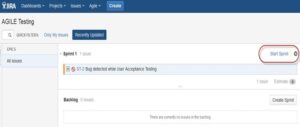
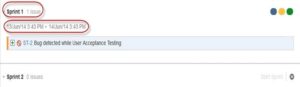
Like here we
have set sprint for 1 day and it will run sprint for that specific time period
as shown in the screenshot below. If you are working with scrum, and want to
prioritize the issue or rank the issue then you just have to simply drag and
drop the issue into the backlog.
have set sprint for 1 day and it will run sprint for that specific time period
as shown in the screenshot below. If you are working with scrum, and want to
prioritize the issue or rank the issue then you just have to simply drag and
drop the issue into the backlog.
Apart from this
there are multiple task that you can do, for instance if you click on the right
side corner of the window a list of function will pop up which you can use it
as per your need.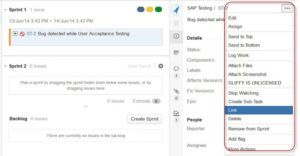
there are multiple task that you can do, for instance if you click on the right
side corner of the window a list of function will pop up which you can use it
as per your need.
Reports in JIRA
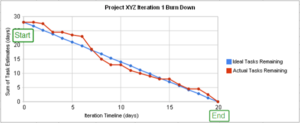
To track the
progress in Agile, a Burndown Chart shows the actual and
estimated amount of work to be done in the sprint. A typical burndown chart
will look somewhat like this, where the red line indicates the actual task
remaining while the blue line indicates ideal task remaining during the scrum
cycle.
progress in Agile, a Burndown Chart shows the actual and
estimated amount of work to be done in the sprint. A typical burndown chart
will look somewhat like this, where the red line indicates the actual task
remaining while the blue line indicates ideal task remaining during the scrum
cycle.
Apart from Burn
down chart there are other options available in JIRA like Sprint
Report, Epic Report, Version Report, Velocity Chart, Control Chart, Cumulative
flow diagram. You can also use different chart option to represent the
progress of your project.
down chart there are other options available in JIRA like Sprint
Report, Epic Report, Version Report, Velocity Chart, Control Chart, Cumulative
flow diagram. You can also use different chart option to represent the
progress of your project.
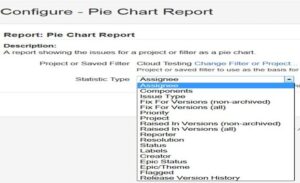
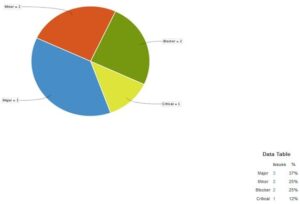
Like here in
the screen shot above, we have selected a pie chart for issue priorities. It
will generate a Pie Chart representing the priorities and severity of the
issues in percentage for the whole project as shown below. You can view the pie
chart from different perspectives like Assignee, Components, Issue
Type, Priority, Resolution, and Status and so on.
the screen shot above, we have selected a pie chart for issue priorities. It
will generate a Pie Chart representing the priorities and severity of the
issues in percentage for the whole project as shown below. You can view the pie
chart from different perspectives like Assignee, Components, Issue
Type, Priority, Resolution, and Status and so on.
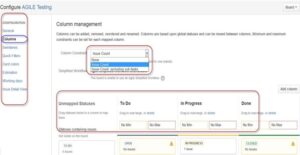
You can also
configure how you want to see the scrum board. Scrum board gives various
options through which you can make changes into your board appearance. Various
features you can configure using scrum are Columns, Swimlanes, Quick Filters,
Card colors and so on. Here we have selected column management, and selected
the options Issue count, and it will show the total number of issue in
progress, to do or done. In column management, we can add an additional column
as per our requirement likewise there are different features that you can
configure in board.
configure how you want to see the scrum board. Scrum board gives various
options through which you can make changes into your board appearance. Various
features you can configure using scrum are Columns, Swimlanes, Quick Filters,
Card colors and so on. Here we have selected column management, and selected
the options Issue count, and it will show the total number of issue in
progress, to do or done. In column management, we can add an additional column
as per our requirement likewise there are different features that you can
configure in board.
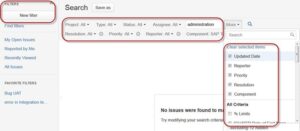
Filters
You can also
set filters other than default filters to filter the issues. The filters that
you can use aredate, component, priority, resolution and so on.
set filters other than default filters to filter the issues. The filters that
you can use aredate, component, priority, resolution and so on.
Kanban Board and Managing issues
Like Agile
Scrum board, we can also create a Kanban Board, here we have created a project
name Cloud Testing. Kanban board is useful for the team that managing and
constraining their work in progress. Kanban boards are visible in Work mode but
not in Plan mode.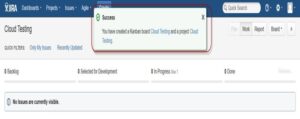
Scrum board, we can also create a Kanban Board, here we have created a project
name Cloud Testing. Kanban board is useful for the team that managing and
constraining their work in progress. Kanban boards are visible in Work mode but
not in Plan mode.
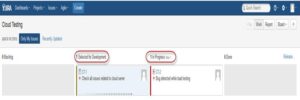
Here we have
created an issue ” Bug detected while load testing” and “Check
issues related to cloud server” in Kanban Board as shown in the
screenshot below, it also shows their status as well highlighted in red.
created an issue ” Bug detected while load testing” and “Check
issues related to cloud server” in Kanban Board as shown in the
screenshot below, it also shows their status as well highlighted in red.
Kanban is
considered as the best methodology for bug fixing and maintenance release,
where incoming task is prioritized and then worked accordingly. There are few
measures which can make Kanban more efficient.
considered as the best methodology for bug fixing and maintenance release,
where incoming task is prioritized and then worked accordingly. There are few
measures which can make Kanban more efficient.
- Visualize your workflow
- Limit the work in progress
- Work on Issues
- Measure the cycle time
JIRA Scrum vs. JIRA Kanban
|
Scrum
|
Kanban
|
|
Reports
Burndown Chart: The chart shows
all the changes and scope changed while the sprint is still on, other charts include Sprint Report, Velocity Chart, Epic Report, etc. |
Reports
Control Chart: It allows you to
measure the cycle time for issues, showing the mean time and actual time taken to complete issues |
|
Agile Board
It allows the team to see the
progress of sprints. This is the work mode, where you can see the board itself broken down into different statuses. |
Constraints
Team can decide whether to
increase or decrease the number of issues that should be displayed in each status. |
|
Backlog
This is where team will plan
sprints and estimate stories that will go into each sprint |
Workflow
You can map columns to the
statuses of your workflow. Simply by adding or removing columns the workflow can be changed when required. |
Interview
Questions
Questions
1)
Explain what is JIRA?
Explain what is JIRA?
JIRA is an issue tracking product or a software tool
developed by Atlassian, commonly used for bug tracking, project management and
issue tracking; it is entirely based on this three aspects.
developed by Atlassian, commonly used for bug tracking, project management and
issue tracking; it is entirely based on this three aspects.
2)
Explain what is a workflow?
Explain what is a workflow?
Workflow is defined as a movement of the bug/issue through
various stages during its life-cycle
various stages during its life-cycle
·
Created/Open
Created/Open
·
WIP ( Work In Progress)
WIP ( Work In Progress)
·
Completed/Closed
Completed/Closed
3)
What can be referred as an issue in JIRA?
What can be referred as an issue in JIRA?
In JIRA, an issue can be anything like a
·
Software bug
Software bug
·
The project task
The project task
·
A help-desk ticket
A help-desk ticket
·
The leave request form
The leave request form
4)
List out the source control programs with which it integrates?
List out the source control programs with which it integrates?
It integrates with source control programs such as CVS, Git,
Subversion, Clearcase, Visual SourceSafe, Mercurial, and Perforce.
Subversion, Clearcase, Visual SourceSafe, Mercurial, and Perforce.
5)
Why use JIRA?
Why use JIRA?
The reason behind using JIRA is
·
Upfront and fair licensing policy
Upfront and fair licensing policy
·
Features that is not available
elsewhere
Features that is not available
elsewhere
·
Get latest update on the progress of
projects
Get latest update on the progress of
projects
·
It run anywhere and recognized with
many famous companies
It run anywhere and recognized with
many famous companies
·
Easily extensible and customizable
Easily extensible and customizable
6)
Is it possible to access JIRA cloud site via a mobile device?
Is it possible to access JIRA cloud site via a mobile device?
Yes, it is possible to access JIRA cloud site via a mobile
device. You have to just use the URL of the JIRA cloud site in your mobile web
browser.
device. You have to just use the URL of the JIRA cloud site in your mobile web
browser.
7)
Can you disable JIRA mobile for the site?
Can you disable JIRA mobile for the site?
You can disable JIRA mobile for the site, so that users can
be unable to operate the desktop view of JIRA on their mobile device.
JIRA mobile comes as a system add-on and can be disabled any time.
be unable to operate the desktop view of JIRA on their mobile device.
JIRA mobile comes as a system add-on and can be disabled any time.
8)
Explain labelling and linking issue in JIRA?
Explain labelling and linking issue in JIRA?
·
Labelling Issue: It enables you to categorize an issue in a more
informal way than assigning it to a component or version. You can then search
issues according to label.
Labelling Issue: It enables you to categorize an issue in a more
informal way than assigning it to a component or version. You can then search
issues according to label.
·
Linking Issue: This
feature enables you to link an association between two issues on either on the
same or different JIRA servers.
Linking Issue: This
feature enables you to link an association between two issues on either on the
same or different JIRA servers.
9)
Mention the types of reports generated in JIRA?
Mention the types of reports generated in JIRA?
JIRA offer reports that show statistics for projects,
versions, people or other fields within issues. Various reports included
with JIRA are
versions, people or other fields within issues. Various reports included
with JIRA are
·
Average Age Report
Average Age Report
·
Pie Chart Report
Pie Chart Report
·
Resolution Time Report
Resolution Time Report
·
Recently Created Issues Report
Recently Created Issues Report
·
Resolved vs. Created Issues Report
Resolved vs. Created Issues Report
·
Single Level Group by Report
Single Level Group by Report
·
Time Tracking Report
Time Tracking Report
·
User Workload Report
User Workload Report
·
Workload Pie Chart Report, etc.
Workload Pie Chart Report, etc.
10)
Explain what is Cloning an Issue?
Explain what is Cloning an Issue?
Cloning as issue allows you to create a duplicate of the
original issue so that many employees can work on a single issue within a
single project. The clone issue can be connected to the original issue. A
clone issue holds following the information
original issue so that many employees can work on a single issue within a
single project. The clone issue can be connected to the original issue. A
clone issue holds following the information
·
Summary
Summary
·
Description
Description
·
Assignee
Assignee
·
Environment
Environment
·
Priority
Priority
·
Issue Type
Issue Type
·
Security
Security
·
Reporter
Reporter
·
Components, etc.
Components, etc.
11)
Mention what things are not included in cloned issue in JIRA?
Mention what things are not included in cloned issue in JIRA?
·
Time tracking
Time tracking
·
Issue history
Issue history
·
Comments
Comments
12)
Explain what is the use of “Move Issue” wizard in JIRA?
Explain what is the use of “Move Issue” wizard in JIRA?
The move issue wizard enables you to specify another project
in your JIRA instance. Move wizard permit you to change certain attributes of
an issue like
in your JIRA instance. Move wizard permit you to change certain attributes of
an issue like
·
Issue Type: If your issue is a custom issue type and does not
occur in your target project, you must choose a new issue type for your issue
Issue Type: If your issue is a custom issue type and does not
occur in your target project, you must choose a new issue type for your issue
·
Issue Status: If you have assigned your issue as a custom issue
status and it does not exist in your project, you must select a new issue
status for your issue
Issue Status: If you have assigned your issue as a custom issue
status and it does not exist in your project, you must select a new issue
status for your issue
·
Custom Fields: If you have determined required custom fields for your
issue, which do not occur in the target project, you must set values for them.
Custom Fields: If you have determined required custom fields for your
issue, which do not occur in the target project, you must set values for them.
13)
How security setting is helpful in JIRA?
How security setting is helpful in JIRA?
JIRA’S security setting restricts the access to the issue to
only those person who is allowed to work on the issue or a member of the chosen
security level. Security level of an issue can be set either when the issue is
created or when the issue is being edited
only those person who is allowed to work on the issue or a member of the chosen
security level. Security level of an issue can be set either when the issue is
created or when the issue is being edited
14)
Explain how you can share an issue with other users?
You can email an issue by using the share option in JIRA. You can also email
other JIRA users a link to the issue by sharing the issue with them or by
mentioning them in an issue’s Description or Comment field.
Explain how you can share an issue with other users?
You can email an issue by using the share option in JIRA. You can also email
other JIRA users a link to the issue by sharing the issue with them or by
mentioning them in an issue’s Description or Comment field.
15)
Explain how you can modify multiple bulk issues?
Explain how you can modify multiple bulk issues?
To
modify multiple bulk issues, you can use Bulk Change option
from the “Tools” menu of the navigator. All the issues on the current
page can be selected for the bulk operation. The following list details
the available bulk operations like
modify multiple bulk issues, you can use Bulk Change option
from the “Tools” menu of the navigator. All the issues on the current
page can be selected for the bulk operation. The following list details
the available bulk operations like
·
Workflow Transition
Workflow Transition
·
Delete
Delete
·
Move
Move
·
Edit
Edit
16)
Explain how you can disable mail notification for Bulk Operations?
Explain how you can disable mail notification for Bulk Operations?
To disable mail notification for a particular Bulk
Operations, you have to de-select the “Send Notification” checkbox in the bulk
operation wizard.
Operations, you have to de-select the “Send Notification” checkbox in the bulk
operation wizard.
17)
What does an issue change history include?
What does an issue change history include?
Issue change history includes
·
Deletion of a comment
Deletion of a comment
·
Deletion of a worklog
Deletion of a worklog
·
Creation or deletion of an issue
link
Creation or deletion of an issue
link
·
Attachment of a file
Attachment of a file
·
Changes to an issue field
Changes to an issue field
18)
Explain what does the three color indicates tracking times or duration for an
issue?
Explain what does the three color indicates tracking times or duration for an
issue?
Three color will be displayed representing the amount of
time spent behind the issue
time spent behind the issue
·
Original Estimate (Blue): The amount
of time originally estimated to resolve the issue
Original Estimate (Blue): The amount
of time originally estimated to resolve the issue
·
Remaining Estimate(Orange): The
remaining amount of time left to resolve the issue
Remaining Estimate(Orange): The
remaining amount of time left to resolve the issue
·
Time Spen or Logged (Green): The
amount of time spent so far while resolving the issue
Time Spen or Logged (Green): The
amount of time spent so far while resolving the issue
19)
Mention some of the popular add-ons for JIRA?
Mention some of the popular add-ons for JIRA?
Some popular add-ons for JIRA include,
·
Suites utilities for JIRA
Suites utilities for JIRA
·
ScriptRunner for JIRA
ScriptRunner for JIRA
·
Zephyr for JIRA – Test Management
Zephyr for JIRA – Test Management
·
JIRA Toolkit Plugin
JIRA Toolkit Plugin
·
Atlassian REST API Browser
Atlassian REST API Browser
·
Portfolio for JIRA
Portfolio for JIRA
·
JIRA Misc Workflow Extensions
JIRA Misc Workflow Extensions
·
Tempo Timesheets for JIRA
Tempo Timesheets for JIRA
·
JIRA Charting Plugin
JIRA Charting Plugin
20)
Mention what is Schemes in JIRA?
Mention what is Schemes in JIRA?
Schemes are a major part of JIRA configuration. It is a
collection of configured values that can be used by one or more JIRA project.
For instance, Notification Schemes, Permission Scheme, Issue Type Scheme, and
so on. There are total seven types of schemes.
collection of configured values that can be used by one or more JIRA project.
For instance, Notification Schemes, Permission Scheme, Issue Type Scheme, and
so on. There are total seven types of schemes.
21)
Mention what can be configured for JIRA project and issue type?
Mention what can be configured for JIRA project and issue type?
You can configure following things for each pair of an issue
type and JIRA project.
type and JIRA project.
·
The order of custom fields appears
on an issue screen
The order of custom fields appears
on an issue screen
·
Workflow of an issue including the
statuses
Workflow of an issue including the
statuses
·
Which custom fields and system an
issue can use
Which custom fields and system an
issue can use
·
Project accessibility
Project accessibility
·
Permissions for what a user can do
with an issue
Permissions for what a user can do
with an issue
·
Versions and components available
for an issue
Versions and components available
for an issue
22)
Mention is it possible to get back up your JIRA cloud data?
Mention is it possible to get back up your JIRA cloud data?
In JIRA, you can take backup of your JIRA cloud data using
Backup Manager. But only one backup file is stored at a time. The
existing backup is overwritten by new ones.
Backup Manager. But only one backup file is stored at a time. The
existing backup is overwritten by new ones.
23)
Mention what data can be backed up?
Mention what data can be backed up?
The backup data includes,
·
Attachments if selected
Attachments if selected
·
Users and their group settings
Users and their group settings
·
Avatars
Avatars
·
Issues
Issues
24)
Mention some useful tips on JIRA Workflow?
Mention some useful tips on JIRA Workflow?
·
As such Statuses are global objects
in JIRA. Changing the name of the status on one workflow will change the status
on all workflows that use that status
As such Statuses are global objects
in JIRA. Changing the name of the status on one workflow will change the status
on all workflows that use that status
·
Hover over a status or transition to
see the relevant transition labels
Hover over a status or transition to
see the relevant transition labels
·
One cannot clone transitions in the
workflow designer
One cannot clone transitions in the
workflow designer
·
In the workflow designer, one cannot
create annotations
In the workflow designer, one cannot
create annotations
·
Directly you cannot set the
issue.editable property.
Directly you cannot set the
issue.editable property.
25)
Mention what are the limitations when editing an active workflow?
Mention what are the limitations when editing an active workflow?
·
If a workflow is active, you cannot
edit the workflow name (only the description)
If a workflow is active, you cannot
edit the workflow name (only the description)
·
You cannot delete the workflow steps
You cannot delete the workflow steps
·
A step associated status cannot be
edited
A step associated status cannot be
edited
·
You cannot add any new outgoing
transition if a step has no outgoing transitions (Global transitions are not
considered).
You cannot add any new outgoing
transition if a step has no outgoing transitions (Global transitions are not
considered).
·
A step’s Step ID cannot be changed.
A step’s Step ID cannot be changed.
26)
In JIRA workflow, is it possible to transition an issue back to its previous
status?
In JIRA workflow, is it possible to transition an issue back to its previous
status?
Practically, it is not possible to transition an issue back
to its previous status. However, you can use “onhold” feature to
transition an issue back to its previous status. Here are the steps,
to its previous status. However, you can use “onhold” feature to
transition an issue back to its previous status. Here are the steps,
·
In workflow, Create a global
transition to the ‘On Hold’ status.
In workflow, Create a global
transition to the ‘On Hold’ status.
·
Now from ‘On Hold’ status create
another transition to every other status you want to come back to
Now from ‘On Hold’ status create
another transition to every other status you want to come back to
·
Since the transition names cannot be
the same, just add a blank space at the end of it.
Since the transition names cannot be
the same, just add a blank space at the end of it.
·
Now you don’t want the status
transition from the ‘On Hold’ and ‘Done’ to ‘On Hold’ So
you will hide the other status “On Hold” by adding the value field condition on
the global transition.
Now you don’t want the status
transition from the ‘On Hold’ and ‘Done’ to ‘On Hold’ So
you will hide the other status “On Hold” by adding the value field condition on
the global transition.
27)
Mention what is the role of Validators in JIRA?
Mention what is the role of Validators in JIRA?
The Validators in JIRA checks that any input made to the
transition is valid before the transition is performed. If a validator
fails, the issue will not progress to the destination status of the transition.
transition is valid before the transition is performed. If a validator
fails, the issue will not progress to the destination status of the transition.
28)
Mention what types of Post functions are carried out after the transition is
executed?
Mention what types of Post functions are carried out after the transition is
executed?
Types of Post functions carried out after transition is
executed includes
executed includes
·
Adding a comment to an issue
Adding a comment to an issue
·
Generating change history for an
issue
Generating change history for an
issue
·
Updating an issue’s fields
Updating an issue’s fields
·
Generating an event to trigger email
notifications
Generating an event to trigger email
notifications
29)
What is an event in JIRA?
What is an event in JIRA?
The events are classified in two a System event (JIRA
defined events) and Custom event (User defined events). An event describes the
status, the default template and the notification scheme and workflow
transition post function associations for the event.
defined events) and Custom event (User defined events). An event describes the
status, the default template and the notification scheme and workflow
transition post function associations for the event.
30) What is Audit Log?
Under Audit Log, you can see all the details about the issue
created, and the changes made in the issues.
created, and the changes made in the issues.
31)
For a Agile project, how user stories in JIRA are created?
For a Agile project, how user stories in JIRA are created?
For Agile project to create user stories in JIRA, follow
below steps.
below steps.
·
Issue type -Epic and Issue type –
Story linked to it. In order to do so, in the ‘Create Issue’ page, go to
“Configure Fields” and select “Epic link” field to be included in the issue
creation screen.
Issue type -Epic and Issue type –
Story linked to it. In order to do so, in the ‘Create Issue’ page, go to
“Configure Fields” and select “Epic link” field to be included in the issue
creation screen.
·
Or you can have a product backlog by
creating a main User story and having various sub-tasks under it.
Or you can have a product backlog by
creating a main User story and having various sub-tasks under it.
32)
Mention what is an “issue collector”?
Mention what is an “issue collector”?
An “issue collector” enables you to easily embed a JIRA
feedback form into your own web site. This helps website visitors to log issues
into JIRA through our website. To use JIRA feedback form, visitors to our
website do not need a user account in JIRA.
feedback form into your own web site. This helps website visitors to log issues
into JIRA through our website. To use JIRA feedback form, visitors to our
website do not need a user account in JIRA.
33)
Mention the difference between Bugzilla and JIRA?
Mention the difference between Bugzilla and JIRA?
|
Bugzilla
|
JIRA
|
|
·
It is an Open Source |
·
It is a commercial tool |
|
·
Using Bugzilla might be little complicated for few due to grouping users and granting permissions |
·
For some using JIRA would be more convenient than Bugzilla |
|
·
Bugzilla allows you to show/hide the whole custom field or specific values based on the value of some other field |
·
JIRA enables conditional configuration based only on Type fields and Project. |
|
·
Bugzilla’s has a powerful advanced search option |
·
JIRA lacks advance-level search options. JIRA has flexible JQL language (JIRA Query Language). It enables you to build arbitrary boolean expressions. |
|
·
Unlike JIRA, Bugzilla allows users select the initial status of a new issue. |
·
Unlike Bugzilla, JIRA enables you to define multiple workflows which are applied based on the issue’s Project and Type. |
|
·
Bugzilla has only one link type: Blocks/depends and a Bug ID custom field |
·
JIRA has configurable link types with user-defined semantics. JIRA enables to link an issue to any other entity outside JIRA. |
34)
Explain how you can modify multiple bulk issues?
Explain how you can modify multiple bulk issues?
You can modify multiple bulk issues by using option “Bulk
Change” option.
Change” option.